
 Language courses Tinexta Group 2025
________
On this page you will find information and tutorials related to your course with inlingua Roma
FAQs
GENERAL INSTRUCTIONS AND TUTORIALS
In this section you will find all the technical information for carrying out your language courses with inlingua Roma.
HOW TO ACCESS YOUR PERSONAL AREA
Please log in exclusively through the Google Chrome browser by clicking the “GO TO YOUR DASHBOARD” button on the Tinexta Group course page.
Once logged in, enter your login credentials:
USERNAME: Your email address (indicated in the login email)
PASSWORD: Your password
If you don’t remember your password, please email us at roma.salandra@inlinguaroma.info to request a reset.
HOW TO BOOK YOUR COURSE
You can now book your course directly from your personal page.
We suggest reserving your course by
Follow these instructions and join the most compatible course to your needs.
- Go to the following address (Compatible Browsers: Google Chrome, Mozilla Firefox, Safari, NO Internet Explorer):
https://inlinguaroma.scuolasemplice.it/login
Username: Provided whitin the log in email
Password: Provided whitin the log in email (you can change it after your first login by clicking on your name on the top-right corner).
After you log into your personal page, you will be able to see all available course with start date and attendance.
- Click on “More Information” to see the full calendar:

- Once you are ready to subscribe, click on “Join this class”:
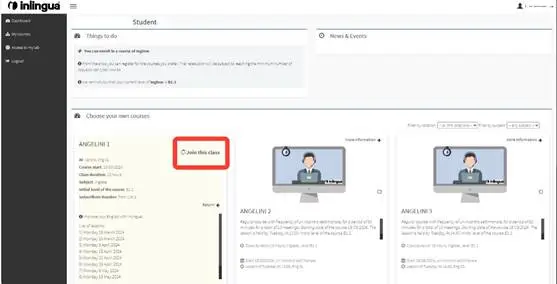
Congratulations, you’re in!
Should you change your mind and wish to change course, click on “More Information” on the box of your course and select “Unsubscribe”.
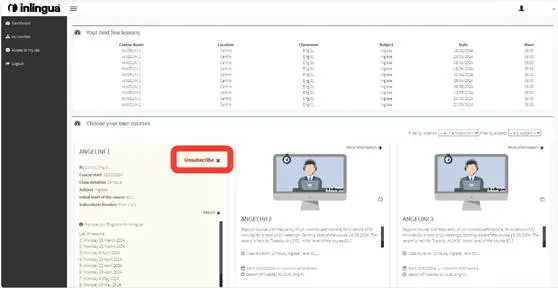
You will be able to choose another course following steps 1 and 2 of this quick guide.
HOW TO CHANGE ONE CLASS (for all classes with available options).
If you cannot attend one session, you can change it with a different time on the same day (according to availabilities shown on the system).
You can change as many lessons as you want, except for the first one.
Please note: To change a lesson, the previous one must have already been completed.
Guidelines:
- Changes must be made on your own through your personal account area;
- You can change up to a maximum of nineteen (19) lessons for the course except lesson number 1;
- Below is the link to the General Video Tutorial on how to change a lesson.
TUTORIAL VIDEO:
HOW TO CONNECT TO VIRTUAL CLASSROOM LESSONS
Before the courses begin, we invite you, if you haven’t already done so, to download Zoom.
To access the lesson, log in to your personal area, click on the box indicating the lesson you wish to attend, and then click “Connect to the meeting via Zoom.“
The box appears approximately 10 minutes before the lesson starts.

Make sure you have headphones, microphone and webcam before accessing
HOW TO DOWNLOAD TEACHING MATERIALS
The following video tutorial will guide you through the process of downloading the teaching materials for your English course:
https://www.youtube.com/watch?v=FMjfKFXCns8
PROGRESSION CRITERIA
HOW TO CHANGE YOUR PASSWORD
You can change your password from your dashboard by following these steps.
1 – Click on your name in the top right corner;
2 – Click on “Change Password”;
3 – Enter your current password;
4 – Enter your new password twice.

5- Click on the “Change password” button to save.